How to Upload Plate Number in LTO:
Complete 2026 Guide
Uploading your plate number in the LTO system is the process of registering your new vehicle license plates through the Land Transportation Management System (LTMS) portal. This mandatory step links your physical plates to your digital vehicle records.
According to the 2025 LTO data, over 2.3 million Filipino drivers now use the LTMS portal for their vehicle-related transactions. Therefore you must know how to upload your plate number to save your trips at the LTO offices and keep your registration compliant.
In this guide we will explain to you the upload process. You will learn the steps for both cars and motorcycles, and also about what documents you need, and how you verify your submission. By the end, you will know exactly what to do when you receive new plates. So continue reading!
What Is the LTO Plate Number Upload Process?
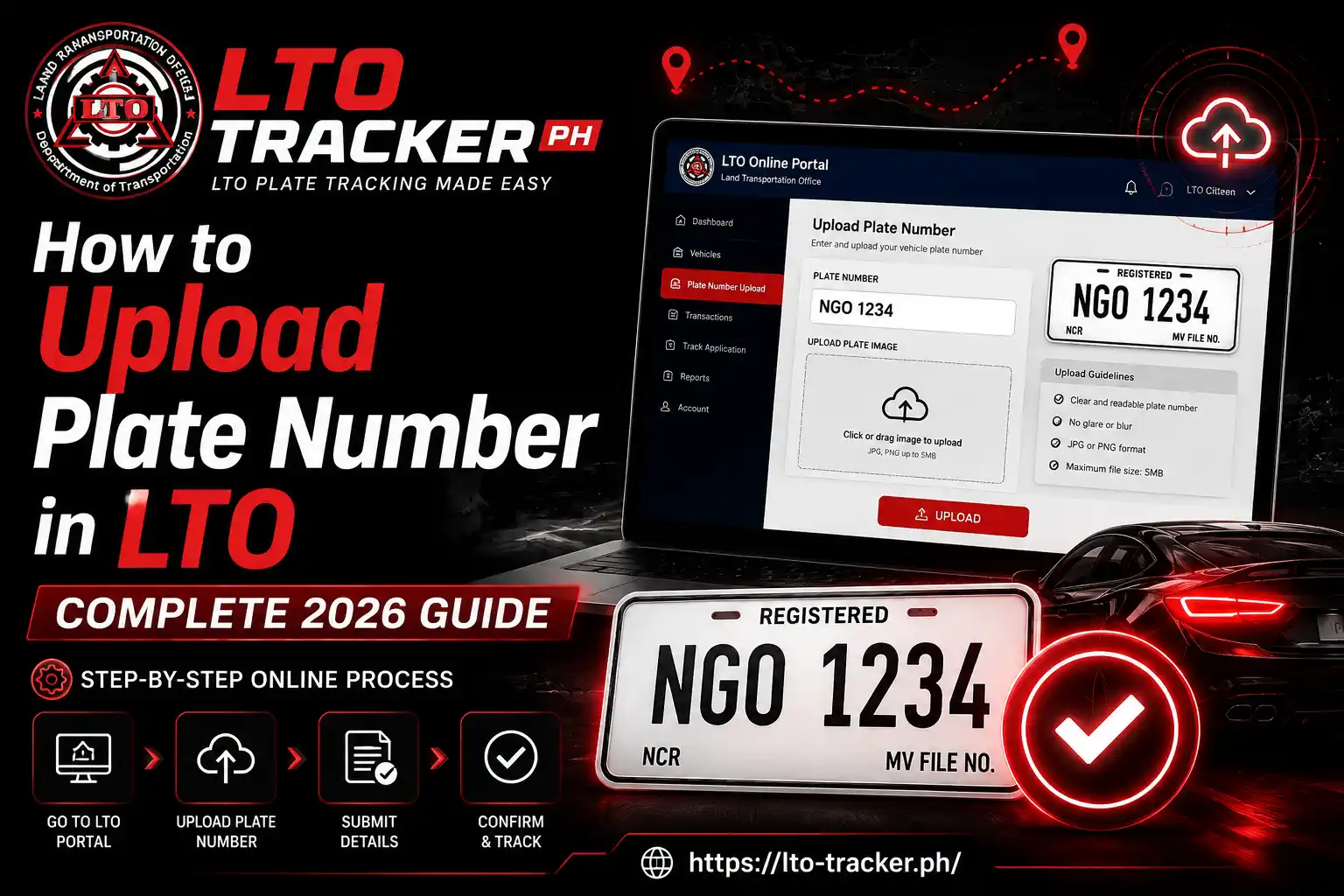
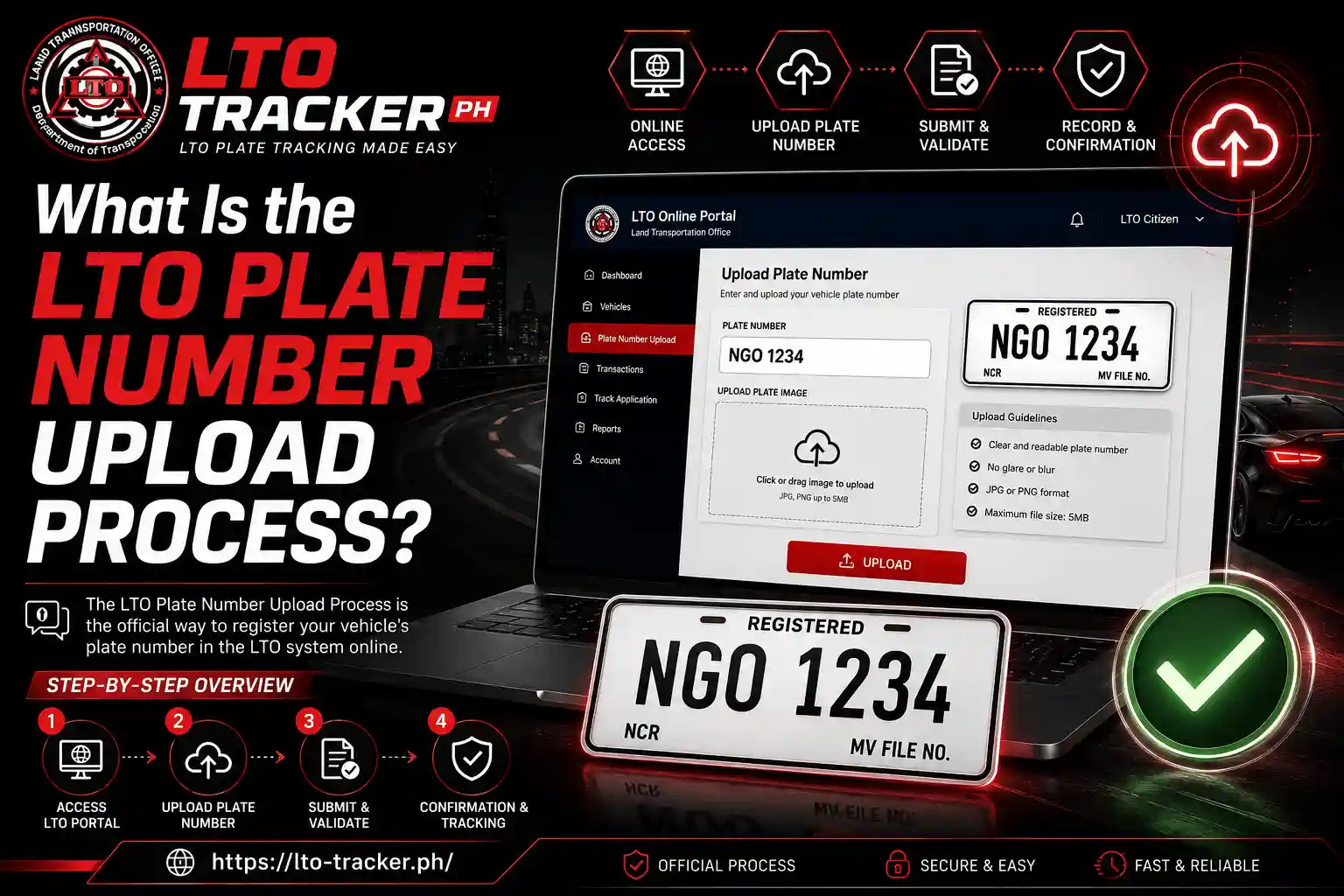
The LTO plate number upload process basically is the process to register your newly received vehicle plates through the online LTMS portal. Your first task after you receive your number plate is to enter your plate number together with all vehicle details which will then update your official LTO records without the need for a branch visit.
The Land Transportation Office (LTO) launched this digital system in 2023 to reduce the rush outside the office. Before this, drivers physically visit LTO branches just to update plate information. Now they complete their process online in just 10 minutes.
When your new plates arrive via courier or pickup, they come with your Motor Vehicle (MV) file number printed on the delivery receipt. You need this number along with your plate details to complete the upload. The system immediately validates your information against LTO databases.
Most uploads get processed within 24 to 48 hours. You receive a confirmation email once the system accepts your plate information. Some users report instant updates, while others wait up to three business days depending on server load.
Why Should You Upload Your Plate Number to LTO Online?
It is not optional anymore to upload your plate number to the LTO portal. You must do this step to complete your vehicle registration cycle. Without it, your records show as incomplete even if you physically installed the plates on your vehicle.
Here are the main reasons this process matters:
- Legal compliance: Your vehicle registration is not fully valid until the plate upload is confirmed in the system
- Traffic violation tracking: Law enforcement cannot properly link violations to your vehicle without uploaded plate data
- Insurance claims: Some insurance companies now require proof of uploaded plate information for policy activation
- Resale documentation: If you sell the vehicle, the buyer will definitely check LTO records, so incomplete uploads can raise red flags
- Avoid penalties: If you are not add your plate number in LTO system, then you can get fines for unregistered plates, which can be from ₱3,000 to ₱5,000
When you completely register your vehicle with a new plate number, you can easily track your LTO plate status in real-time. You can check delivery updates and verify if your plate is ready for pickup. You can access digital copies of your registration documents as well. Because the system connects all your vehicle data in one place, which is time saving too and it also saves you from documents loss.
What Requirements Do You Need to Upload Your LTO Plate Number?
Before starting the upload process, you have to gather all the required documents and information. Unfortunately! If you miss even one item, it will stop your submission and also takes too long to complete.
| Requirement | Description | Where to Find It |
|---|---|---|
| MV File Number | 15-digit motor vehicle identification number | Certificate of Registration or LTO receipt |
| Plate Number | New license plate alphanumeric code | Physical plate or delivery receipt |
| Engine Number | Unique engine identification code | Certificate of Registration |
| Chassis Number | Vehicle identification number stamped on frame | Certificate of Registration |
| LTMS Account | Active portal account with verified email | Create at LTMS portal |
| Valid ID | Government-issued identification | Driver’s license or passport |
| Official Receipt | Proof of registration payment | LTO office or authorized agent |
We are suggesting that you keep digital copies of all your documents on your phone. Because any time the system may ask you to upload scanned images during verification. So, you must have clear and fresh photos that work fine, and make sure all text is readable.
Your LTO certificate of registration contains most of the information you need. If you lost your CR, you will need to request a replacement before proceeding with the plate upload.
How Do You Access the LTO Portal to Upload Your Plate Number?
You can consider the LTMS portal as your gateway to all plate upload functions. You need an active account before you can submit any information. If you have your documents ready, account setup just takes 5 to 10 minutes.
Creating Your LTMS Account
First of all, you have to visit the official LTMS website. Now, on the homepage click the registration button. After that a form will open, you must fill it with your basic information including your full name, birth date, and contact details.
After that for login purposes you have to enter your email address carefully. You will receive a verification link that expires in 30 minutes. So, as early as possible click on the verification link and activate your account.
If you don’t receive email in your inbox within five minutes then check your spam folder.
After clicking the link, you will see a new page on your screen. Where you need to enter a password to access the portal services. So, you have to choose a strong password with at least eight characters, including uppercase letters, numbers, and special symbols you can see below the box.
you must write your registered password somewhere in your diary because password recovery takes 24 hours through customer service.
Logging Into the Portal
After you register on the portal, you need to return to the portal and select the login button. You need to enter the email address and password which you used to register for the service.
For detailed guidance on accessing your account, read our LTMS login guide. Our guide covers common login problems and security settings also.
If you have successfully logged into the portal, you will see your dashboard with many menu options. Now for adding your plate number into the portal, look for “Vehicle Services” or “Plate Registration”. It will depend on the current portal layout because LTO updates the portal interface regularly, that’ s why button names can vary slightly.
How to Upload Plate Number in LTO for Cars (Step-by-Step)
The car plate upload process differs slightly from motorcycles because of additional verification steps. Follow these steps to avoid errors that can delay processing.
Step 1: Navigate to Plate Upload Section
After logging in your portal account, you will see a main menu of the portal so click on the “Vehicle Services” from the menu. A dropdown appears with multiple options. From these options select “Upload Plate Number” or “Register Plates” it depends on the portal upgradation.
After this you have to provide your vehicle’s information such as your vehicle type. So, choose “Four-Wheel Vehicle” or “Private Car” from the options. This selection determines which form fields appear next.
Step 2: Enter Vehicle Information
Now it’s time to provide complete deails of your vehicle. So, start with your 15-digit MV file number. Type carefully because the system verifies your information from the existing records. One wrong digit triggers an error message.
Now you have to enter your engine number as it is on your Certificate of Registration. You must follow the correct format which includes letters and numbers without any spaces. Same goes for the chassis number, which is usually longer and includes dashes.
After that you have to add your new plate number. Type carefully the letters and numbers without spaces or special characters. For example, if your plate reads “ABC 1234,” enter it as “ABC1234.”
Step 3: Upload Supporting Documents
In the next step, you need to upload clear images of specific documents. So, click on the “Choose File” next to each document requirement and upload in accepted formats including JPG, PNG, and PDF with maximum file sizes of 5MB each.
Now upload a photo of your license plate. Your plate should be visible with good lighting because blurry images get rejected automatically.
Now you have to add a scanned copy or clear photo of your Official Receipt, it must show your registration payment. The system checks the OR number against its database. If you need information about related requirements, check out our guide on required documents for ownership transfer.
Step 4: Review and Submit
You must check the details you entered before submitting your application. Also match each detail with your physical documents.
After that read the declaration statement at the bottom. It confirms that all information provided is accurate and complete. Check the box to agree, then click “Submit Application.”
The system will generate a reference number immediately. Copy this number and save it somewhere safe. You will need it when you will check your upload status later. You will receive a confirmation message along with an email sent to your registered email address.
Step 5: Wait for Verification
After submitting your application you have to wait patiently because LTO officers verify your data from your existing LTO records. If everything matches, they approve your application quickly.
If they find any mismatched information then they perform a manual verification and it takes time. An LTO officer examines your uploaded documents and compares them to database entries. This adds 24 to 48 hours to the process.
You receive your application status updates through your registered email even at each stage. You can check your application status by logging back into the portal and clicking “My Applications” or “Track Upload Status.”
How to Upload Motorcycle Plate Number in LTO Online
If you own a motorcycle and want to upload your motorcycle plate number on an LTO portal account you must follow a similar process but with a few key differences.
Step 1: Starting the Motorcycle Upload
First of all you must log into your LTMS account and then select “Vehicle Services.” Now you have to select your vehicle type, so choose “Two-Wheel Vehicle” or “Motorcycle”. When you select your vehicle type it opens a motorcycle-specific form.
The motorcycle form has fewer fields than the car form. You still need these details before you start:
- MV file number
- Plate number
- Engine number
- Chassis number
Step 2: Entering Motorcycle Details
Now type your 15-digits MV file number in the first field. Motorcycle MV file number has the same format as car. When you enter it the system will verify this immediately then you move to the next field.
Now you have to enter your new motorcycle plate number without any spaces. Motorcycle plates use a different format than car plates, but the entry method is the same. You must follow the letters and numbers exactly as they appear on the plate.
Next you must provide the engine and chassis numbers from your Certificate of Registration. Motorcycles sometimes have shorter engine numbers than cars. So you should enter the characters carefully as they are shown on your documents.
Step 3: Document Upload for Motorcycles
In the next step you must upload a clear photo of both motorcycle plates if you received front and rear sets. Some motorcycles only get rear plates depending on registration year. So, don’t worry about it! Upload what you have.
Then you have to upload your Official Receipt photo, it must show your motorcycle registration payment. The system accepts the same file formats as the car upload process like JPG, PNG, or PDF up to 5MB.
Step 4: Submission and Tracking
You must review all your entered information on the application summary page. You will receive approval faster than a car because it is more simple than the car verification process. Mostly it completes within 24 hours.
After submitting your application you will receive a reference number. So write it in your diary for tracking the application status. You can track progress through the portal or directly by our LTO tracking tool.
How Do You Verify Your Uploaded Plate Number in LTO?
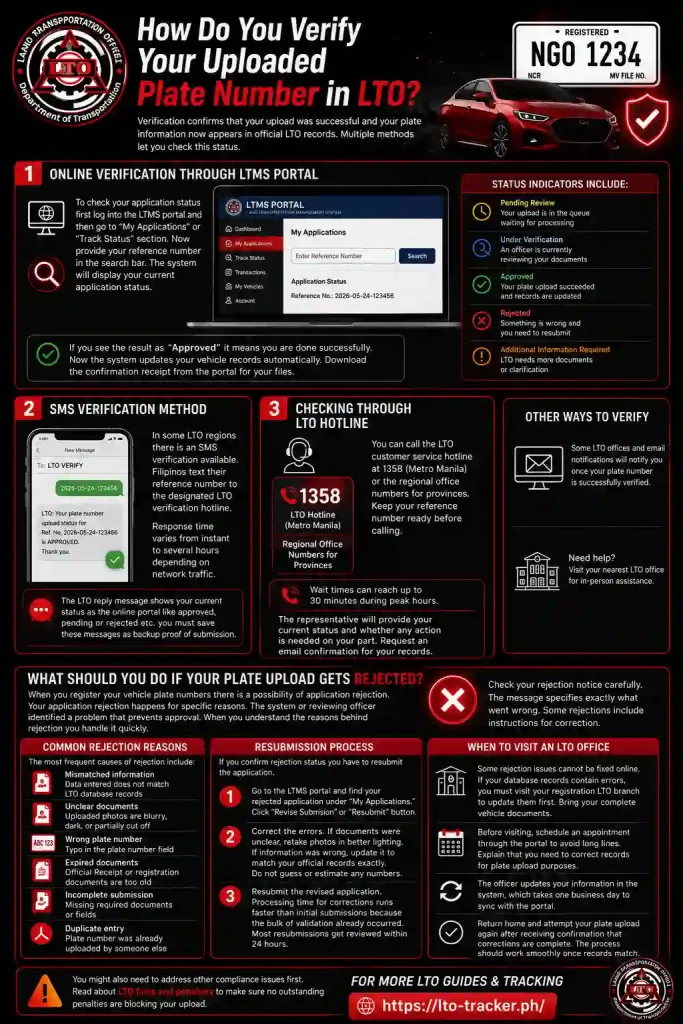
Verification confirms that your upload was successful and your plate information now appears in official LTO records. Multiple methods let you check this status.
1: Online Verification Through LTMS Portal
To check your application status first log into the LTMS portal and then go to “My Applications” or “Track Status” section. Now provide your reference number in the search bar. The system will display your current application status.
Status indicators include:
- Pending Review: Your upload is in the queue waiting for processing
- Under Verification: An officer is currently reviewing your documents
- Approved: Your plate upload succeeded and records are updated
- Rejected: Something is wrong and you need to resubmit
- Additional Information Required: LTO needs more documents or clarification
If you see the result as “Approved” it means you are done successfully. Now the system updates your vehicle records automatically. Download the confirmation receipt from the portal for your files.
2: SMS Verification Method
In some LTO regions there is an SMS verification available. Filipinos text their reference number to the designated LTO verification hotline. Then they respond in the reply but Response time varies from instant to several hours depending on network traffic.
The LTO reply message shows your current status as the online portal like approved, pending or rejected etc. you must save these messages as backup proof of submission.
3: Checking Through LTO Hotline
You can get the information about your application approval through the hotline number. You can call the LTO customer service hotline at 1358 (Metro Manila) or the regional office numbers for provinces. Keep one thing in mind before calling you must ready your reference number. Wait times can reach 30 minutes during peak hours.
When you tell them your reference number, the representative accesses your application via the reference number. They tell you the current status and whether any action is needed on your part. Request an email confirmation of the status for your records.
If you encounter issues or see unexpected status messages, our article on how to verify LTO alarm explains how to investigate potential problems with your vehicle records.
What Should You Do If Your Plate Upload Gets Rejected?
When you register your vehicle plate numbers there is a possibility of application rejection. Your application rejection happens for specific reasons. The system or reviewing officer identified a problem that prevents approval. When you understand the reasons behind rejection you handle it quickly.
Common Rejection Reasons
The most frequent causes of rejection include:
- Mismatched information: Data entered does not match LTO database records
- Unclear documents: Uploaded photos are blurry, dark, or partially cut off
- Wrong plate number: Typo in the plate number field
- Expired documents: Official Receipt or registration documents are too old
- Incomplete submission: Missing required documents or fields
- Duplicate entry: Plate number was already uploaded by someone else
Check your rejection notice carefully. The message specifies exactly what went wrong. Some rejections include instructions for correction.
Resubmission Process
If you confirm rejection status you have to resubmit the application. So, go to the LTMS portal once again and find your rejected application which will be under “My Applications.” Now click the “Revise Submission” or “Resubmit” button.
Now relax and correct the errors. If documents were unclear, retake photos in better lighting. If information was wrong, update it to match your official records exactly. Do not guess or estimate any numbers.
Resubmit the revised application. Processing time for corrections runs faster than initial submissions because the bulk of validation already occurred. Most resubmissions get reviewed within 24 hours.
When to Visit an LTO Office
Some rejection issues cannot be fixed online. If your database records contain errors, you must visit your registration LTO branch to update them first. Bring your complete vehicle documents.
Before visiting, save your time and schedule an appointment through the portal and avoid long lines. Explain to them that you need to correct records for plate upload purposes. The officer updates your information in the system, which takes one business day to sync with the portal.
Return home and attempt your plate upload again after receiving confirmation that corrections are complete. The process should work smoothly once records match.
You might also need to address other compliance issues first. Read about LTO fines and penalties to make sure no outstanding penalties are blocking your upload.
How Long Does LTO Plate Upload Verification Take?
Timeline expectations help you plan accordingly. Multiple factors affect how quickly LTO processes your upload.
You will avoid violations, if you know your coding day. You can plan your trips during window hours (10:00 AM to 5:00 PM), through alternate vehicles or public transport. And you must stay updated on MMDA announcements for suspensions. Your simple planning can eliminate most of the upcoming risks.
Here are practical strategies:
Standard Processing Times
Uploads complete within 24 to 72 hours mostly. Simple cases with perfect information clear the automated checks in hours. The system approves these without human intervention.
Applications requiring manual review take longer. When data does not auto-validate, an officer must examine everything manually. This adds one to two business days depending on the office workload.
Peak periods slow things down. Registration renewal months (birthday month for private vehicles) see heavy portal traffic. Expect processing to hit the upper end of the time range during these periods.
Factors That Speed Up Processing
Accuracy matters most. Every field filled correctly means faster automated approval. Double-checking information before submission prevents delays.
High-quality document uploads move through review quickly. Officers can verify clear photos in seconds. If your application has blurry images, it will be hard to read which is a waste of time.
If you are done with a complete submission, it will help to avoid repeated questions and delays too. Applications with all required documents get processed in one pass. Missing items trigger requests for additional information, restarting the clock.
Tracking Your Timeline
The reference number gives you tracking power. Check status daily through the portal. Each status change appears with a timestamp showing exactly when it happened.
Email notifications provide updates automatically. Add the LTO portal address to your email contacts so messages do not land in spam. Some users miss approval emails and wait unnecessarily.
Submit your plate upload on Tuesday or Wednesday morning. Weekend and Monday submissions sit in queue longer due to higher volume. Mid-week mornings hit the system when processing capacity is highest.
Can You Upload Someone Else’s Plate Number to LTO?
The short answer is no, not without proper authorization. The LTO system requires the registered owner to perform uploads or someone with legal authority to act on their behalf.
Owner Authorization Requirements
If you need to upload plates for someone else, you need a notarized Special Power of Attorney (SPA). This legal document grants you authority to conduct LTO transactions for the vehicle owner.
The SPA must specifically mention plate upload or vehicle registration activities. Generic SPAs do not work. Visit a notary public with the vehicle owner to have the document prepared and notarized properly.
Upload a scanned copy of the SPA along with your other documents when submitting through the portal. The system flags third-party submissions and checks for this authorization automatically.
Corporate and Fleet Vehicles
Companies registering multiple vehicles can designate authorized representatives. The company secretary or authorized officer submits a board resolution listing approved representatives.
Corporate accounts in the LTMS portal allow multiple users under one entity. Each user logs in with individual credentials but accesses shared company vehicle records. This streamlines fleet management.
What Happens After Successful Plate Upload?
Approval is not quite the finish line. Several post-upload steps complete the entire registration cycle.
Digital Record Updates
Your vehicle information syncs across all LTO databases within 24 hours of approval. Law enforcement officers can now see your plate number when they check your vehicle during routine inspections.
The LTMS portal displays your uploaded plate information under your vehicle profile. You can access this anytime to verify what is on file. Download a PDF copy for your records.
Physical Installation Verification
Make sure your physical plates are properly mounted on your vehicle. Front and rear plates must be clearly visible with no obstructions. Improper mounting can still result in violations even with successful upload.
Some LTO offices conduct random spot checks. Officers verify that uploaded plate numbers match what is actually installed on vehicles. Mismatches trigger investigations and potential penalties.
Registration Completion
Your vehicle registration cycle is now fully complete. The Official Receipt, Certificate of Registration, and uploaded plate information all align in the LTO system.
This full compliance status matters for several situations including insurance claims, vehicle sales, and renewal applications. Keep confirmation receipts in your vehicle along with other registration documents.
If you later need a LTO replacement plate guide, your uploaded information remains on file. Replacement requests reference the original upload data.
Common Problems When Uploading Plate Numbers to LTO
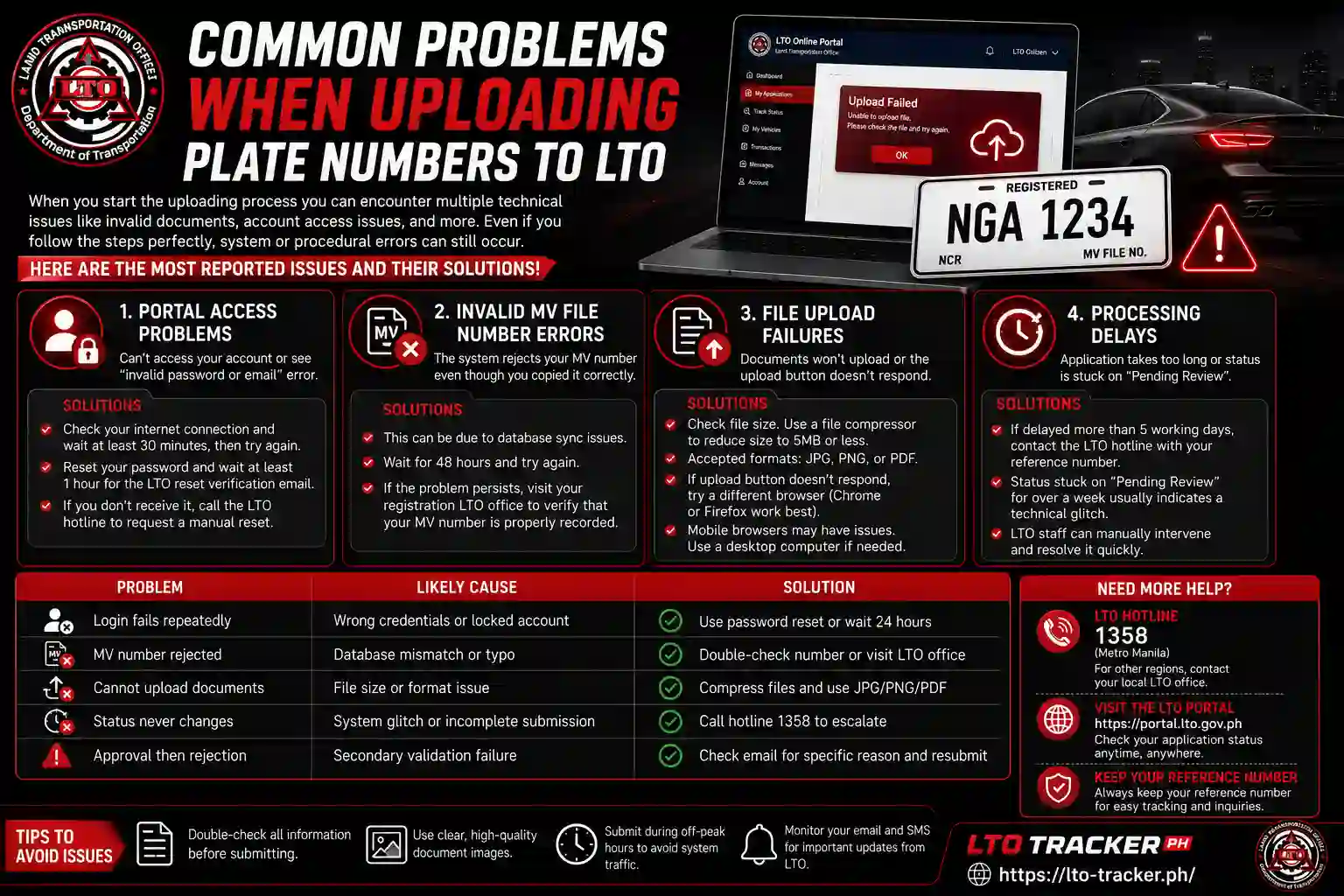
When you start the uploading process you can encounter multiple technical issues like you may find invalid documents, account access issues etc. Although you are following step-by-step instructions perfectly, sometimes a procedural or system error occurs. Here are the most reported issues and their solutions!
Portal Access Problems
If you can’t access your portal account like you see the error “invalid password or email”. This issue can be due to your internet connection so you have to wait for at least 30 minutes and then try again.
You can change or reset your password and wait for at least 1 hour for an LTO reset verification email. If you don’t receive it then call the LTO hotline to request a manual reset.Check your rejection notice carefully. The message specifies exactly what went wrong. Some rejections include instructions for correction.
Invalid MV File Number Errors
The system rejects your MV number even though you copied it correctly? Database sync issues sometimes cause this. So wait for 48 hours and then try it again. If you have the same problem, then you need to physically visit your registration LTO office to verify that your MV number is properly recorded or not.You can change or reset your password and wait for at least 1 hour for an LTO reset verification email. If you don’t receive it then call the LTO hotline to request a manual reset.Check your rejection notice carefully. The message specifies exactly what went wrong. Some rejections include instructions for correction.
File Upload Failures
If you encounter the issue that your documents will not upload. This issue can be due to incorrect file size or format so you have to check file size first. You can use an online file compressing tool and compress file size at 5MBs. Your file format should be one of them JPG, PNG, or PDF.
If you have the correct file size and format, just the upload button does not respond. You can try it on a different web browser because portal works perfectly on Chrome or Firefox. Mobile browsers sometimes have compatibility issues. Switch to a desktop computer if you still have the same problem.
Processing Delays
If your processing is delayed more than 5 working days then contact the LTO hotline with your reference number. They can forward your stuck application to supervisors for review.
Status stuck on “Pending Review” for over a week usually indicates a technical glitch rather than a real problem. Manual intervention by LTO staff resolves these quickly once flagged.
| Problem | Likely Cause | Solution |
|---|---|---|
Login fails repeatedly | Wrong credentials or locked account | ✓
Use password reset or wait 24 hours |
MV number rejected | Database mismatch or typo | ✓
Double-check number or visit LTO office |
Cannot upload documents | File size or format issue | ✓
Compress files and use JPG / PNG / PDF |
Status never changes | System glitch or incomplete submission | ✓
Call hotline 1358 to escalate |
Approval then rejection | Secondary validation failure | ✓
Check email for specific reason and resubmit |
Frequently Asked Questions


Complete Your LTO Plate Upload Today
The plate upload process takes less time than driving to an LTO office and waiting in line. You have all the information now to complete it correctly on your first try. Prepare your MV file number, plate details, engine and chassis numbers, then log into the portal.
Follow each step carefully. Double-check information before clicking submit. Most uploads get approved within 48 hours when done right. Your vehicle compliance depends on this final registration step.
The plates which you currently possess at home should be uploaded now. The process becomes easy when you understand the steps which need to be followed.